microdot
Microdot - a REPL and terminal ui for dot and graphviz
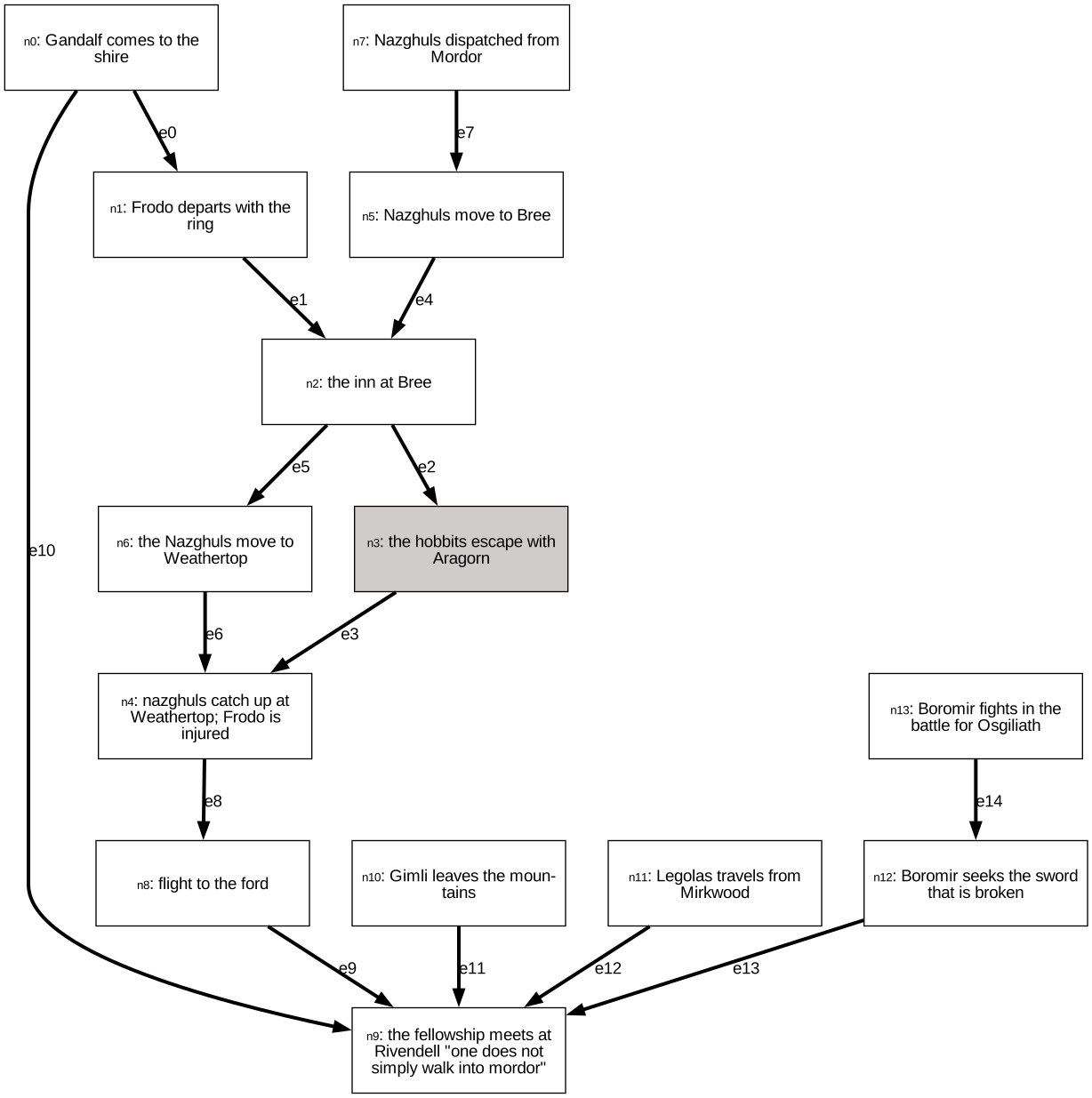
A surprisingly useful kind of diagram is the dependency diagram - it shows how one thing leads to or causes another. For example, it could be part of a story, showing how one event lays the groundwork for the next;
It might also be useful for business analysis, where we examine how problems in a business are inter-related;

This kind of diagram is really useful, but tooling to help you make it is pretty hard to come by. Especially if you’re not a programer.
There is a tool called graphviz, which makes these diagrams, which use the Dot language to create these kinds of diagram. It’s a system that is widely supported, but frankly becomes really hard to manage once you get above about ten nodes. Beyond that things get tricky: since you write node names and edges using long human names, things like a rename can get really annoyingly complex, with lots of find/replace over a file that’s just too noisy.
I’ve written microdot to make this simpler and more interactive. It’s a command-line tool you can start to build up the graph node by node, and edge by edge.
For the story example;
$ microdot --file story.json
>> i Gandalf comes to the shire
(inserted node n0: 'Gandalf comes to the shire')
>> aft n0 Frodo departs with the ring
(inserted node n1: 'Frodo departs with the ring' after n0)
>> aft n1 the inn at Bree
(inserted node n2: 'the inn at Bree' after n1)
>> aft n2 the hobbits escape with Aragorn
(inserted node n3: 'the hobbits escape with Aragorn' after n2)
>> aft n3 nazghuls catch up at Weathertop; Frodo is injured
(inserted node n4: 'nazghuls catch up at Weathertop; Frodo is injured' after n3)
>> i Nazghuls move to Bree
(inserted node n5: 'Nazghuls move to Bree')
>> l n5 n2
(Added edge e4 from n5 to n2)
>> aft n2 the Nazghuls move to Weathertop
(inserted node n6: 'the Nazghuls move to Weathertop' after n2)
>> l n6 n4
(Added edge e6 from n6 to n4)
>> bef n5 Nazghuls dispatched from Mordor
(inserted node n7: 'Nazghuls dispatched from Mordor' before n5)
>> aft n4 flight to the ford
(inserted node n8: 'flight to the ford' after n4)
>> aft n8 the fellowship meets at Rivendell "one does not simply walk into mordor"
(inserted node n9: 'the fellowship meets at Rivendell "one does not simply walk into mordor"' after n8)
>> l n0 n9
(Added edge e10 from n0 to n9)
>> bef n9 Gimli leaves the mountains
(inserted node n10: 'Gimli leaves the mountains' before n9)
>> bef n9 Legolas travels from Mirkwood
(inserted node n11: 'Legolas travels from Mirkwood' before n9)
>> bef n9 Boromir seeks the sword that is broken
(inserted node n12: 'Boromir seeks the sword that is broken' before n9)
>> bef n12 Boromir fights in the battle for Osgiliath
(inserted node n13: 'Boromir fights in the battle for Osgiliath' before n12)
>> /hobbits
(Search results for: hobbits,
n3: the hobbits escape with Aragorn
)
CTRL-D
For the business example;
$ microdot --file story.json
>> lr
(Direction changed to LR)
>> i #customers get delivery too slowly #SG_RESULT
(inserted node n0: '#customers get delivery too slowly #SG_RESULT')
>> bef n0 orders need to be processed by hand #SG_CURRENT
(inserted node n1: 'orders need to be processed by hand #SG_CURRENT' before n0)
>> bef n1 no developer capacity to automate orders #SG_CURRENT
(inserted node n2: 'no developer capacity to automate orders #SG_CURRENT' before n1)
>> bef n2 developers engaged in low-value work #SG_CURRENT
(inserted node n3: 'developers engaged in low-value work #SG_CURRENT' before n2)
>> bef n0 shipping labels generated once a day #SG_BLOCKER
(inserted node n4: 'shipping labels generated once a day #SG_BLOCKER' before n0)
>> bef n4 printers need rebooting but everyone in IT is busy util 3pm #SG_BLOCKER
(inserted node n5: 'printers need rebooting but everyone in IT is busy util 3pm #SG_BLOCKER' before n4)
>> l n3 n5
(Added edge e5 from n3 to n5)
CTRL-D
See how we’re working one line at a time, inserting nodes and linking them together? Each time you make a change, the diagram is regenerated on disk as an SVG file. SVGs can be opened in a browser from the embedded web server, where they will be hot-reloaded, or you can use a desktop tool like Gapplin.
This approach can be pretty good for workshops or interactive sessions, where you act as a moderator, and people can call out intructions, like “I think we need to link n3 to n8,” and you can add them. Right now you can only have one editor working on the file at a time, but maybe in the future we could have a shared editing mode.
Installation
It’s currently built and published as a docker container
The easiest way is to use the docker-compose.yaml file in this repository. Either clone this repo or just save the raw file to disk, and in the directory where you’ve saved it run;
docker compose up &
docker compose exec microdot bash
You’ll now be in the container, and you can run microdot to start the program, like this…
microdot --file /files/story.json
Note that the /files directory is mapped to ~/microdot on your host machine, so your files are stored safe there.
Serving the graphs in a browser
To view your files you can open them in a web browser using port 7777. For example, if you are editing /files/story.json you can open http://localhost:7777/story.html. The HTML files are hot-reloaded, so if you update the diagram, the browser will automatically refresh.
If you use Gapplin to view the SVGs, you can just open the file from the ~/microdot directory.
Serving the files publicly
During a meeting, it can be useful for the meeting facilitator to share a link to the diagram. If you have an ngrok account, you can use it to share your files publicly.
NOTE THERE IS NO SECURITY AT THIS TIME so be careful about sharing sensitive information. Your files will be open to the public.
You will need to set up two environment variables on your machine.
NGROK_AUTHTOKEN- your ngrok authtokenNGROK_DOMAIN- the domain you want to use, e.g.,mycompany.eu.ngrok.io
With that set up you can start docker-compose slightly differently;
docker-compose --profile public up
Your content will now be available publicly at your grok domain.
History
Microdot also includes a history file, similar to the one used in bash, which is stored in ~/.microdot_history on your host machine. This means that you can keep your history between sessions, and you can use the up arrow to recall previous commands.
Usage
just type help to get a list of commands. Some key ones;
Inserting, deleting, and linking nodes
- i new node label    - Insert a node labelled "new node label" into the graph
- d n1                - Delete the <n1> node
- dd n1               - Delete the <n1> node and keep any edges connected
- r n1 newnodetext    - Rename the <n1> node to "newnodetext"
- l n1 n2             - Link the <n1> node to the <n2> node
- u e4                - Unlink the <e4> edge
Advanced Linking
Enter microdot. A repl-driven system for building graphs. The idea is to use language like so; Use these when you want to grow an existing graph by putting new nodes after, before, or between other nodes;
$ microdot --file my-graph.json
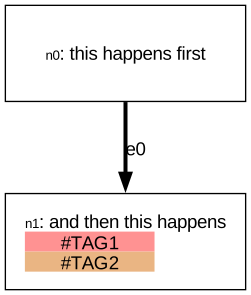
>> i this happens first
(inserted node n0: 'this happens first')
>> i and then this happens
(inserted node n1: 'and then this happens')
>> l n0 n1
(Added edge e0 from n0 to n1)
>> r n1 and then this happens #TAG1 #TAG2
(Node n1 renamed to 'and then this happens #TAG1 #TAG2')
CTRL-D
- aft n0 following    - Insert a node labelled "following" after the node with id "n0"
- bef n0 preceding    - Insert a node labelled "preceding" before the node with id "n0"
- exp e1 intermediate - Expand the <e1> edge with a new node labelled "intermediate"
Searching
- sel n1              - Select the <n1> node and highlight it
- s searchterm        - search for <searchterm> and highlight matching nodes
- /searchterm         - search for <searchterm> and highlight matching nodes
This REPL-style app makes editing a large graph easy and interactive. It outputs dot, and compiles it to svg if you have graphviz installed and on your path. Importantly it defaults to a ‘draft mode’ output so you can see those node IDs;
Orientation
- lr                  - Change the orientation of the graph to left to right
- tb                  - Change the orientation of the graph to top to bottom
In draft mode, the IDs of nodes and edges are included. This means we render a version where every node and edge can be referred to by a very short ID, like n34 or e16. This makes it really easy to do things like delete an edge that shouldn’t exist, rename a node, or insert a new node onto an edge. The operations that are hard when manually writing dot files.
Quitting
Once complete, you can render the real artefact; with the right names, for presenting to people. And it’s just a switch between, delivered as, say
- exit - exit microdot
Advanced Usage
You can use hints inside the names of nodes to add additional data. There are currently two useful additions;
Variables
You can store variables in the nodes, with names like $cost or $is_useful. Variables are shown in the node’s body, aand can be used in critical path and cost analysis;
> int
(interactive mode)
> disp
(display mode)
- crit varname        - do a critical path analysis on the graph using <varname> as the cost
- cost varname        - sum the cost of all nodes in the grpa using <varname> as the cost
Tags
You can add hashtags to the node names, and each tag will add a coloured tag bar. This is useful for visual grouping. Just add a hashtag to the name of the node; e.g.,
- i shipping labels generated once a day #SLOW
Subgraphs
Color Palettes:
Sometimes it’s useful to group nodes together. Use a special Tag whose name begins #SG_ (subgraph) and nodes in the same subgraph will be drawn in a coloured bounding box.
- go to http://khroma.co/train/
- train it with the 50-color selection
- on the trained page, pick a bunch of favourites - as many as you want for different node types
- download trained data (settings cog, download Kharma data button, get json file)
- copy it into src/my_khroma_data.json For example, in ;
https://applecolors.com/palettes
i Mechanic analyses problem #SG_WORKSHOP
aft n0 Mechanic fixes problem #SG_WORKSHOP
the two nodes will be shown in a box labelled WORKSHOP.